Set an out-of-office window
Use an out-of-office window for a holiday, a closure, or any period when you will not be taking calls — without changing your weekly hours. While the window is active, it is checked before your normal open/closed hours, so callers in that period take the out-of-office path even on a day you would normally be open.
How it works, in one sentence: set a start and end date, make sure the window is enabled, and connect the out-of-office exit to the message you want callers to hear. If that exit is not connected, callers fall back to your ordinary closed handling instead — setting the dates alone does not give them a custom out-of-office message.
Step 1 — Set your weekly hours first
- Open the portal, go to your organisation's Dashboard, and open Business Hours.
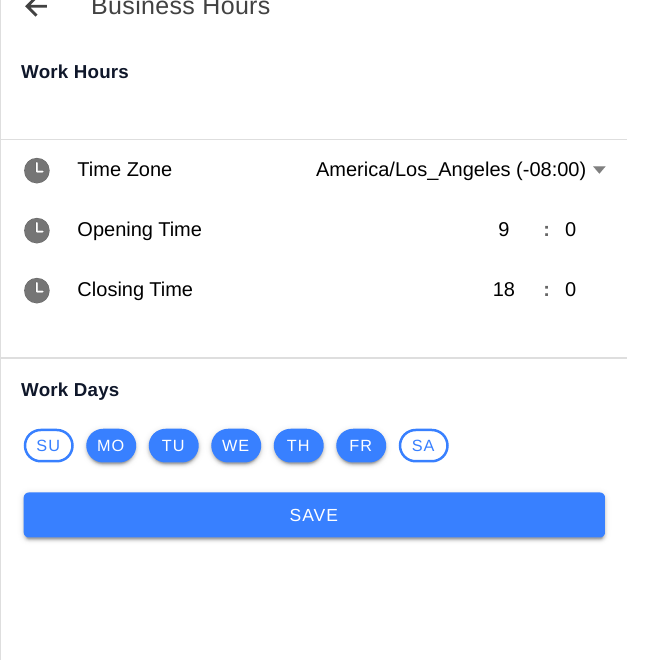
- Enter your working days and one opening and closing time for those days, and check your timezone — the out-of-office window is read in that timezone. The portal labels these Work Days, Opening Time, Closing Time, and Time Zone.
- Decide your ordinary closed handling: a closed message, a callback option, or the same menu with availability hidden. You will need this anyway, because it is the fallback if the out-of-office exit is left unconnected.
Step 2 — Set the window
Take a fictional example: a two-person plumbing business, Riverside Plumbing, closing for a week in August.
- In Assistant, open the Greetings node and open its Full Editor — that is where the Out Of Office switch lives in the portal as captured, not on the Business Hours page. Make sure it is enabled, and set the start and end dates for the closure. A window with no start date, no end date, or the switch off does nothing. No screenshot of the Full Editor was captured in this pass, so this step is text-only for now.
- Enter the start date and end date of the closure — for Riverside Plumbing, Monday to Sunday of that week.
- Double-check the dates against your own calendar, including the return day: callers on the return day should get normal hours again, so the end date must not run a day too long.
Step 3 — Write what callers hear, and connect it
- In the Assistant, find the Business Hours head node. It has three exits: Open, Closed, and Out of office.
- Connect the Out of office exit to a message node. Write the message in plain language: that you are closed, when you return, and what the caller can do instead — leave a message, book for after you return, or, if you offer one, a referral or emergency contact. Keep it short; a caller on the phone does not want a list of dates.
- Example script, adapted to your own business: “Thanks for calling Riverside Plumbing. We are closed this week and will be back on Monday, August 17. Please leave a message and we will call you back when we return, or book an appointment for after that date.”
- If you take bookings, decide whether callers in the window may still book for after your return, or whether booking should be hidden until you are back — and say so in the message, so the assistant does not promise a visit while you are away.
Step 4 — Test it before you leave
- Call from a second phone during a test window, or temporarily set a short test window in the near future, and confirm you hear the out-of-office message — not the ordinary closed message and not the normal menu.
- Test the path after the message too: leave a message, and check it appears in the portal, so nothing is lost while you are away.
- Remove or shorten the test window when you are done, and re-check the real window's dates one last time.
Watch out: an out-of-office window overrides weekly hours, but only while it is active and enabled. After the end date passes, normal hours resume on their own — you do not need a second change to switch the assistant back, but do check the first call after you return to confirm it.
Turning it off early
If you return early, shorten the end date or switch the window off in the Greetings Full Editor, where you turned it on. Then test a call again: you should hear your normal greeting or menu, not the out-of-office message.
Checklist
- Weekly hours and timezone set
- Out-of-office window enabled, with correct start and end dates
- Out-of-office exit connected to its own message, not left to fall back to Closed
- Message states the return date and what the caller can do instead
- Test call during the window hears the out-of-office message
- Message left during the window appears in the portal