Out-of-office times and greetings in Phone Tree 2.0
In Phone Tree 2.0, the Business Hours head node decides where every call goes first. It checks an out-of-office window before your weekly hours, and sends the caller to one of three Triages — Open, Closed, or Out-of-office — and each Triage has its own greeting. This guide sets both halves, step by step: the times (weekly hours and the out-of-office window) and the greetings (what callers hear on each path, as spoken text or your own recording).
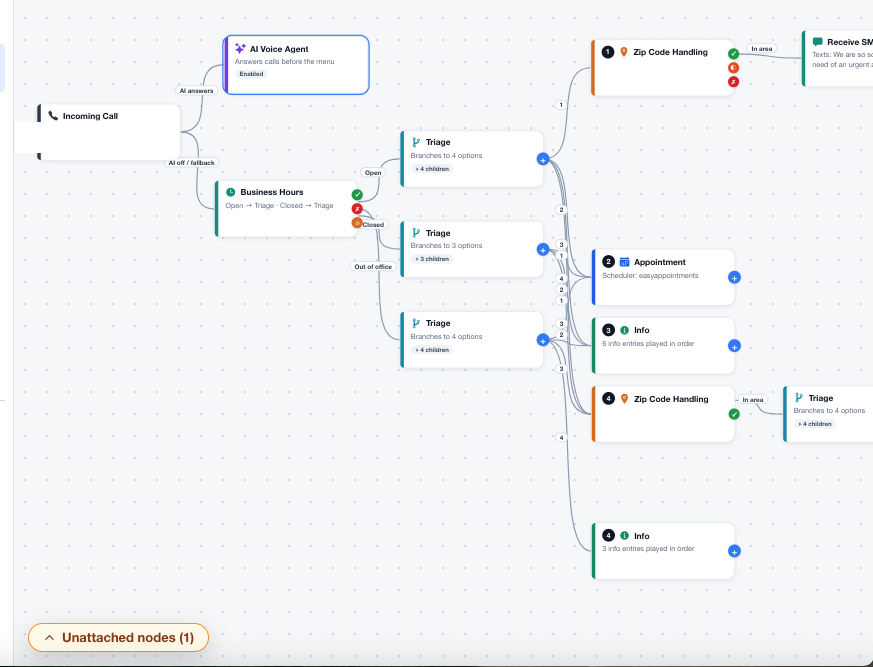
Step 1 — Open the Business Hours head
- In the portal, open your organization and go to Assistant — the Phone Tree 2.0 graph.
- Click the Business Hours head node. Its inspector opens on the right with three accordions: Business Hours, Out-of-Office, and Phone Tree Voice.
- Every change in the inspector is saved with the Save button in the panel — remember to click it after each step below.
Step 2 — Set your weekly hours
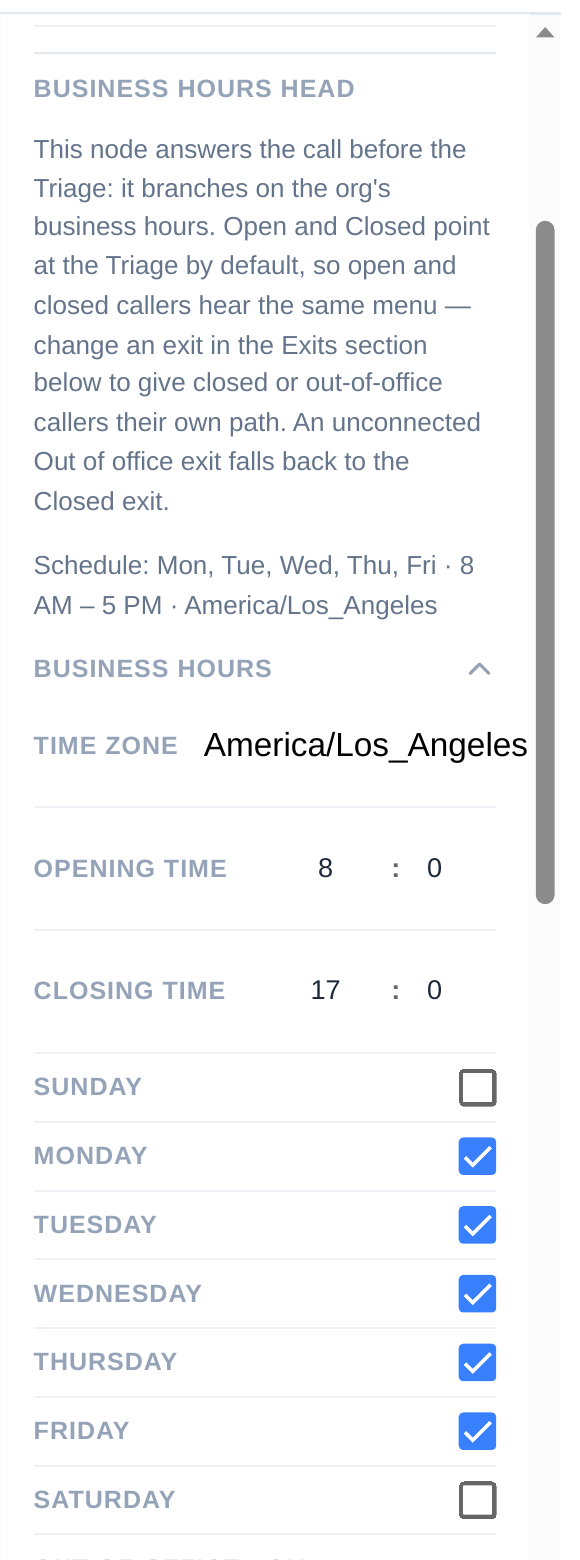
- Open the Business Hours accordion in the head inspector.
- Check the Time Zone first — the out-of-office window in Step 3 is read in this timezone.
- Set the Opening Time and Closing Time, then tick the days you work (Sunday through Saturday).
- Click Save.
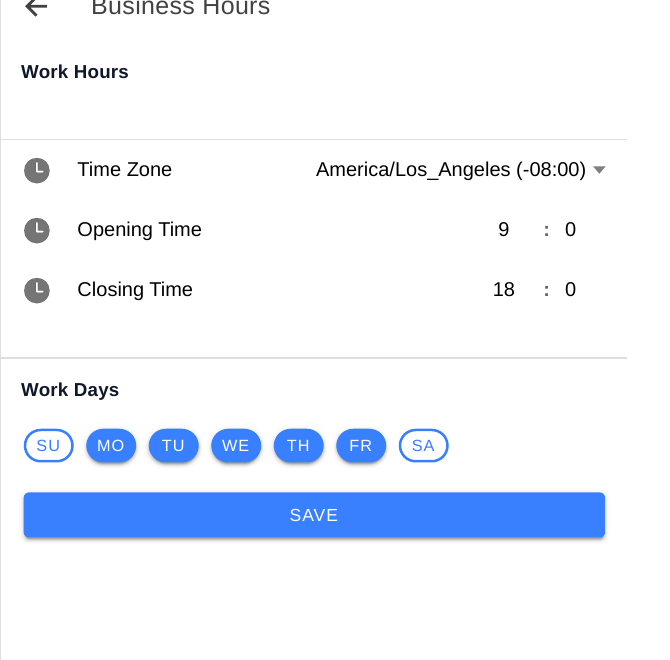
The Dashboard's Business Hours page edits the same schedule, if you prefer a full-page form:
Step 3 — Turn on an out-of-office window
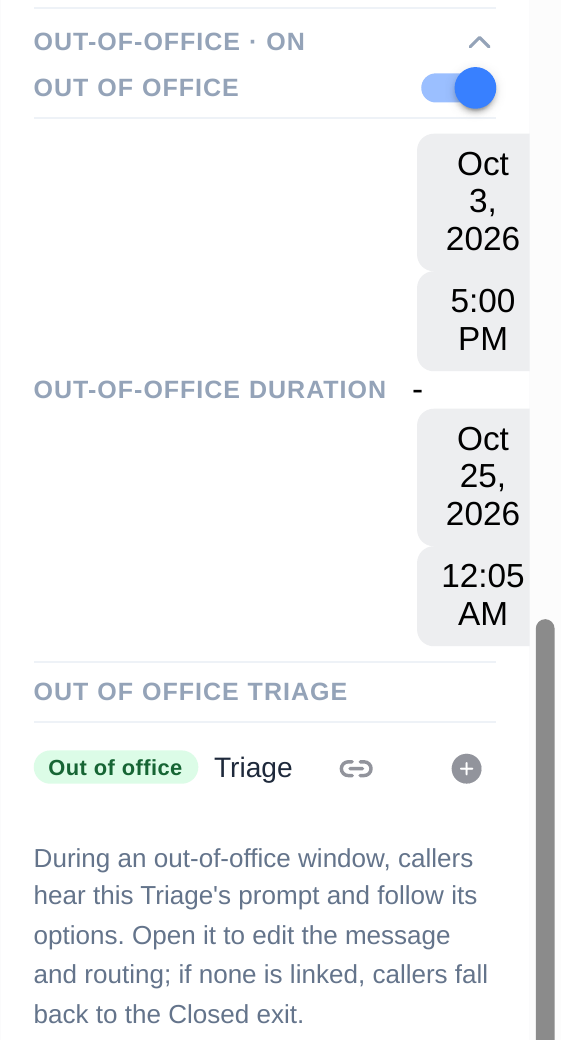
- Still in the Business Hours head inspector, open the Out-of-Office accordion. Its header shows the current state — Out-of-Office · On or · Off.
- Switch the Out Of Office toggle on.
- Set the Out-of-Office Duration: tap the first date-time picker for the moment the window starts, and the second for the moment it ends. The pickers move in 5-minute steps.
- The end is the moment you are back, not the last closed day: the window is active only between the start and the end, so set the end to the time normal service resumes (for example Monday 9:00 AM when you reopen).
- Click Save.
If the accordion says this org has no calendar document, Out-of-Office cannot be set in the head inspector. Do not guess at a fix — contact us at admin@ivr.solutions and we will sort it out.
Step 4 — Set the out-of-office greeting
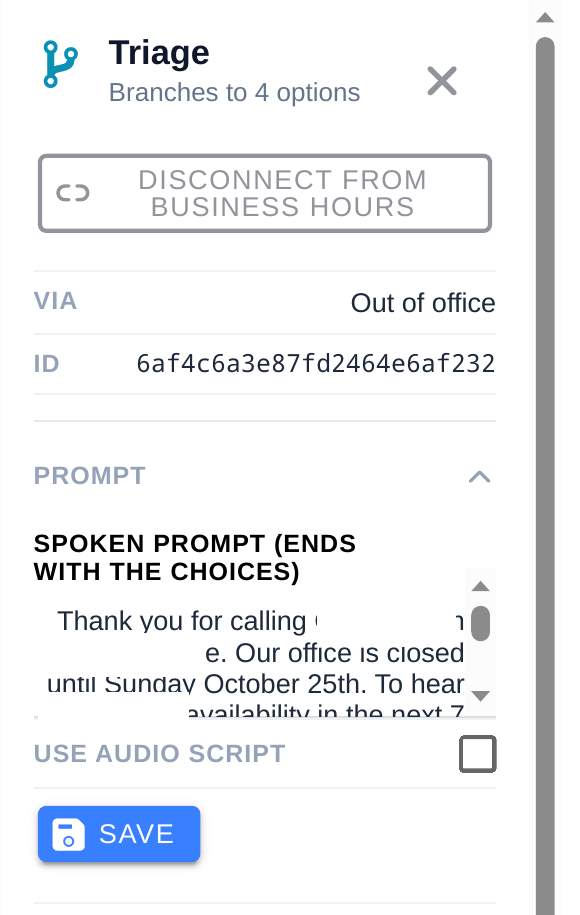
During the window, callers hear the prompt of the Out-of-office Triage — the node connected to the head's Out of office exit, shown at the bottom of the accordion in Step 3. Click its name in that row (or click the node in the graph) to open it.
- In the Triage's inspector, open the Prompt accordion.
- Write the Spoken prompt — the greeting callers hear, ending with the choices you offer. Keep it short: say that you are closed, when you return, and what the caller can do instead. For example: “Thanks for calling. Our office is closed for the holiday and we will be back on Monday, January 5. Press 1 to leave a message, and we will return your call when we reopen.”
- Click Save.
Prefer your own voice? Record the greeting instead
- In the same Triage inspector, tick Use Audio Script. While it is ticked, callers hear the recording instead of the Spoken prompt text.
- Click Add Audio Script, give the recording a name (for example “Holiday greeting”), then either Start Recording to record with your microphone, or Upload File to use an MP3 you already have.
- Play it back to check it, then click Save Audio Script.
- To change which recording plays, use the ⋯ menu on a recording and choose Set as Default (or Delete to remove it). The play button previews any recording in the list.
- Click Save in the inspector.
Step 5 — Set the Open and Closed greetings the same way
- Click the Open Triage in the graph — the one callers reach during business hours — and edit its Prompt the same way: spoken text, or a recording with Use Audio Script.
- Do the same for the Closed Triage, which callers hear outside business hours when no out-of-office window is active.
- Optional: to change how the spoken text sounds, open the Phone Tree Voice accordion in the Business Hours head and pick a voice and speaking speed. Recordings are not affected — only text the assistant reads aloud.
Step 6 — Test before you need it
- Set a short test window a few minutes in the future (Step 3), save, and call your number while it is active: you should hear the out-of-office greeting, not your normal menu.
- Follow the choices in the greeting — for example, leave a message and confirm it arrives in the portal.
- Set the window back to the real dates and times, and save again.
When the window ends, normal hours resume on their own — there is nothing to switch back. If you return early, just shorten the end or switch the Out Of Office toggle off and save.
Checklist
- Weekly hours and timezone set, and saved
- Out-of-office window switched on, with the end set to the moment you reopen
- Out-of-office Triage connected, with its own greeting written (or recorded)
- Open and Closed Triage greetings reviewed
- Test call during a test window hears the out-of-office greeting
The nodes themselves: Phone Tree nodes →